Guide — Install the map
A — Standard map (no HD)
Download the main map archive from the Download page (large file, often ~1.6 GB).
Extract the zip (e.g. right-click → Extract All). When it finishes you should see a folder named FS25_Witcombe—rename it if the name is wrong.
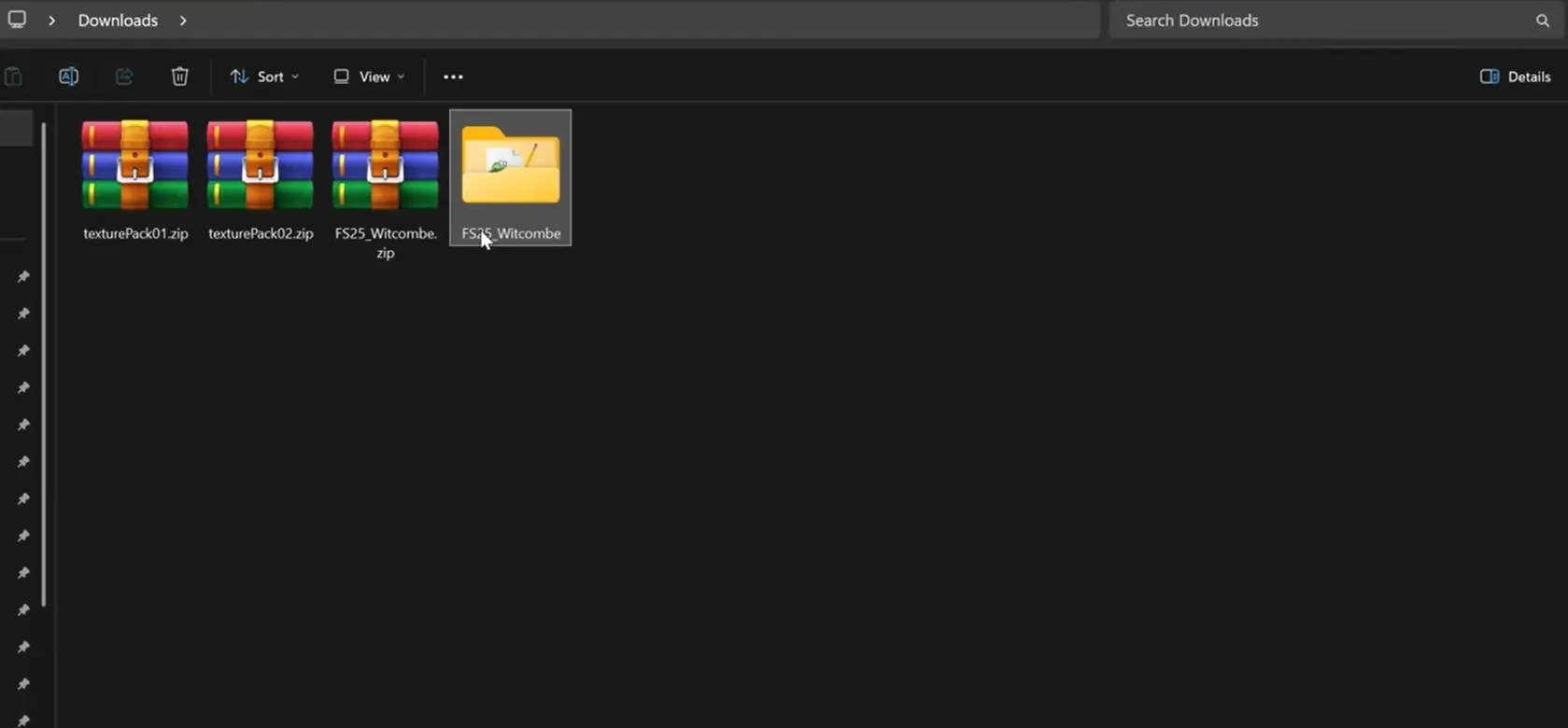
Move the FS25_Witcombe folder into your FS25 mods folder (see path below if you use the default location).
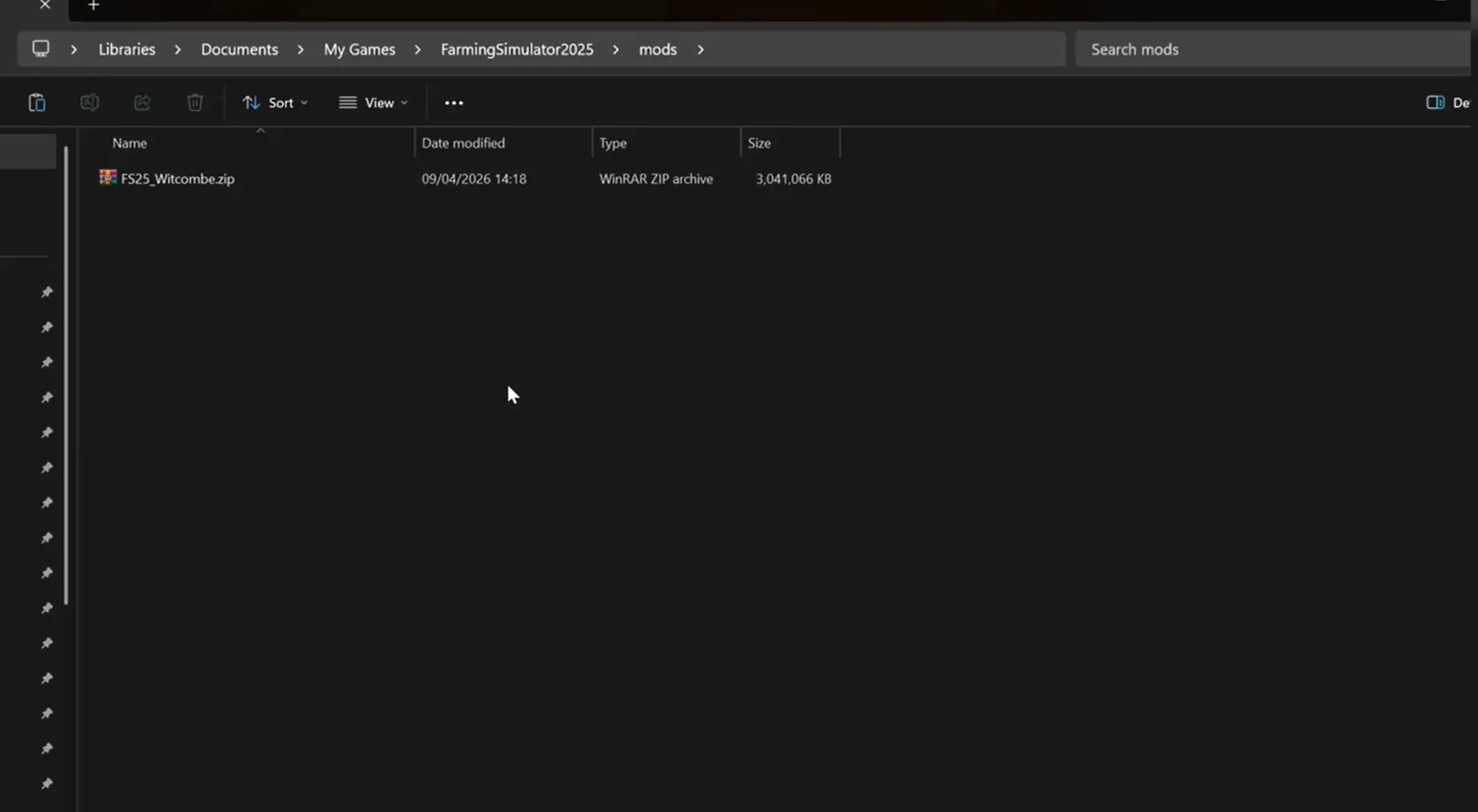
Launch FS25 → Mods → enable FS25_Witcombe → start/load a save and select Witcombe Park Farm.
B — Optional HD textures (merge into the map)
HD is a separate paid download (often split into more than one archive). You only need this if you bought it—skip B entirely otherwise.
Complete A1–A2: download and extract the base map so you have the FS25_Witcombe folder on disk.
Download all HD parts from the author’s page, then extract each HD archive the same way you extracted the map.
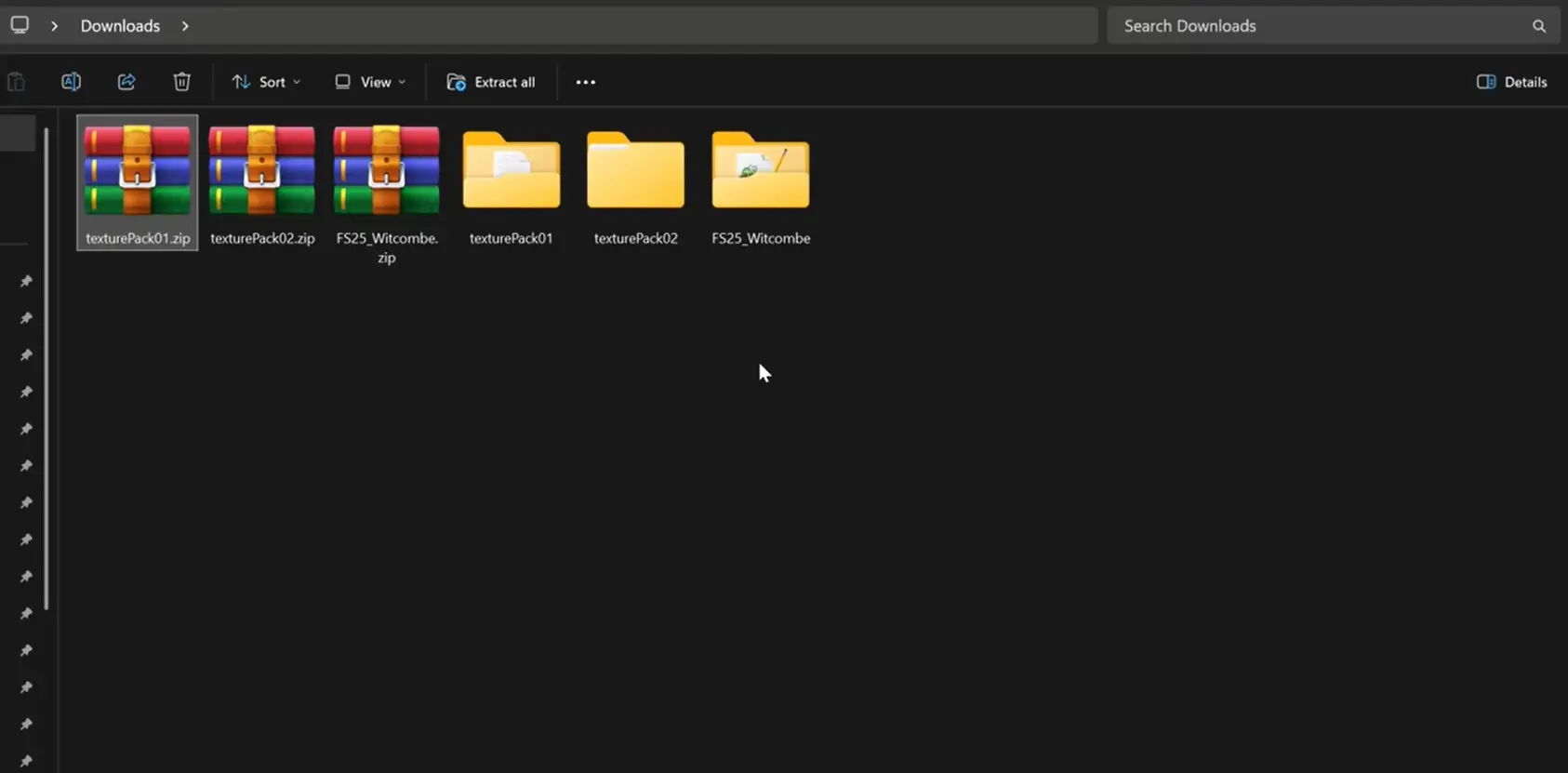
Open the first HD extract. Inside it you should see a map folder (paths match the base map). Copy that map folder, open your extracted FS25_Witcombe folder, paste, and choose replace existing files.
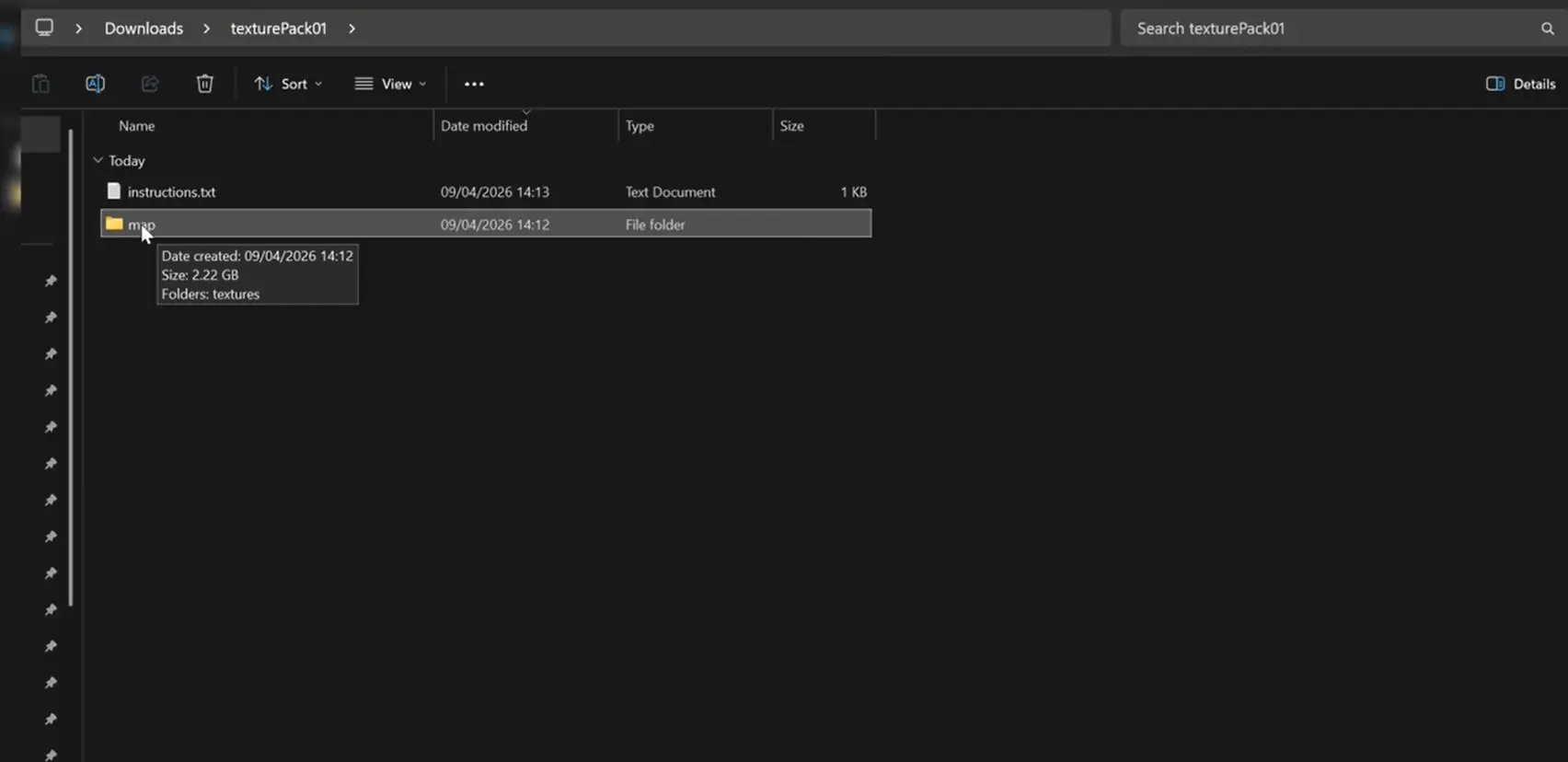
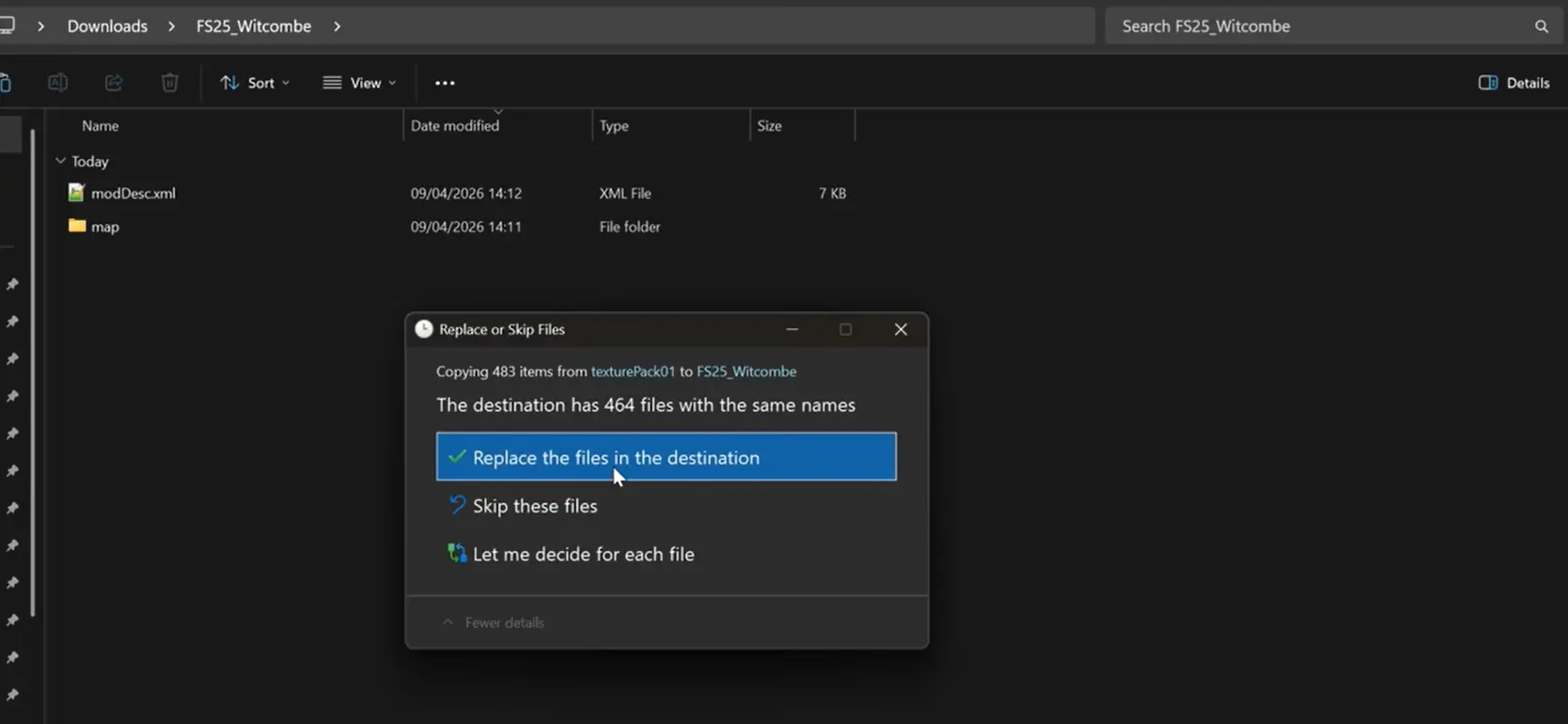
Repeat for each remaining HD part: copy its map folder into the same FS25_Witcombe root and replace when prompted.
Package for FS25: if you use a folder in mods, move the whole merged FS25_Witcombe folder into mods (same as path A). If you prefer a single .zip, compress the FS25_Witcombe folder itself (the folder that contains modDesc.xml). The archive should unpack to FS25_Witcombe/modDesc.xml—not only random inner folders.
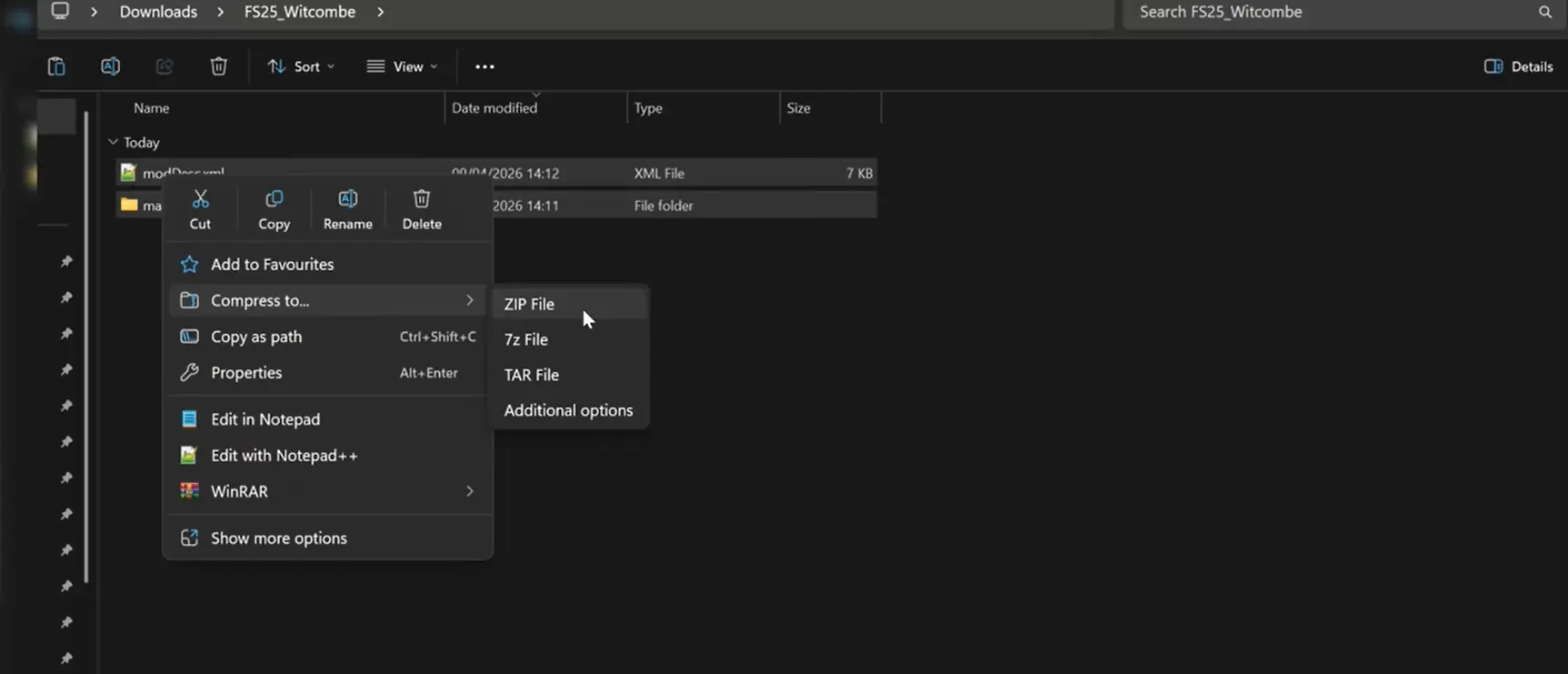
Name the archive FS25_Witcombe.zip unless the author specifies otherwise. Put folder or zip in mods, then enable the mod and load the map as in A4.
Pack READMEs may refine folder names—follow them if they differ. Merge pitfalls: Download → HD section.
Default Windows mods folder
If you never changed the game’s mod directory:
Documents\My Games\Farming Simulator 25\mods
Custom mod path in FS25? Put FS25_Witcombe (folder or zip) there instead.
Short notes
- Multiplayer / uploads: standard map only is smaller—easier for others to sync than a merged HD zip.
- Performance: if FPS drops, lower foliage, object distance, and terrain detail (HD adds more load).
- Errors / fill types: see FAQ and the author’s Community tab.